

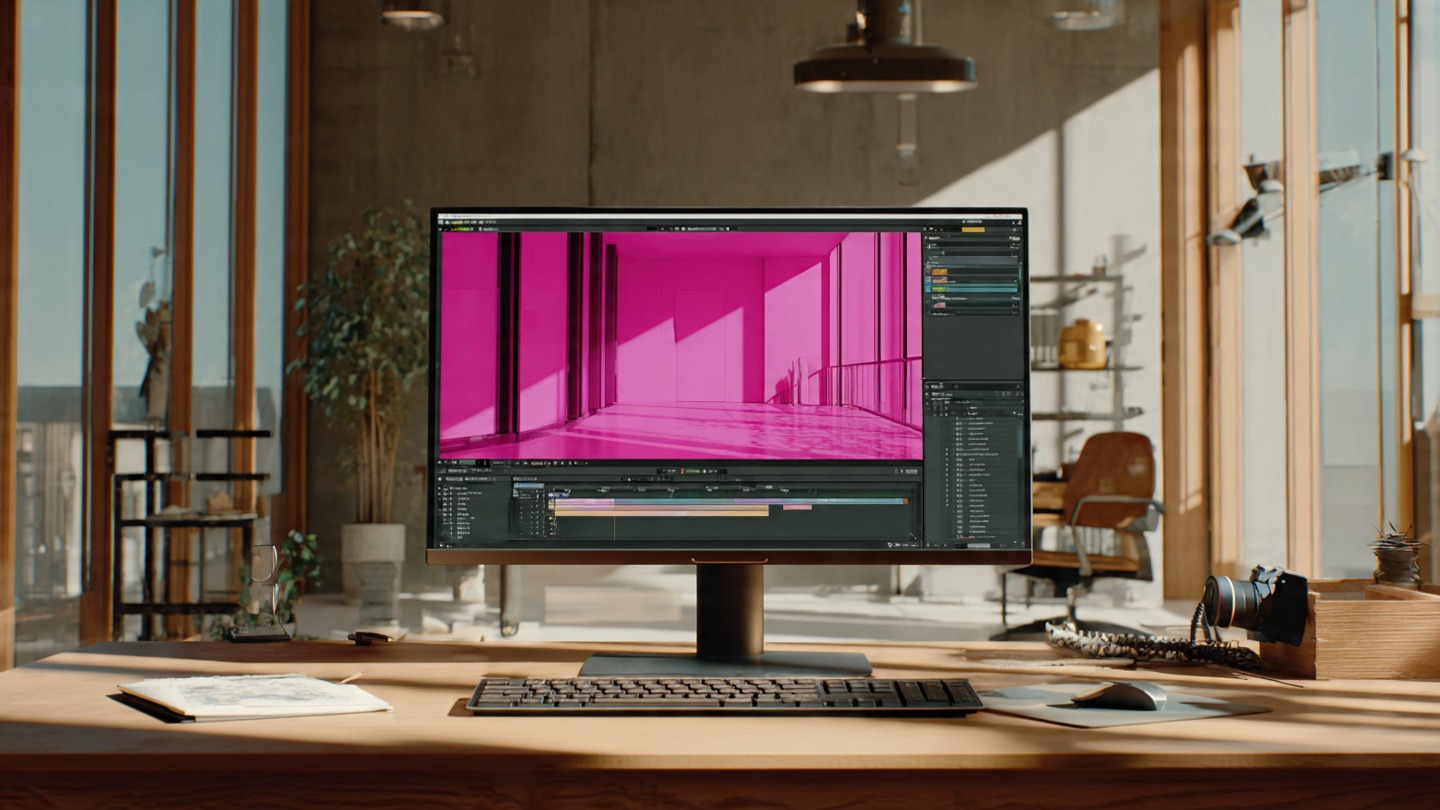
Have you ever opened Blender, excited to edit a video, and then… bam! A huge pink screen stares back at you instead of your footage. It’s the kind of thing that makes you pause, blink a few times, and mutter, “What just happened?” Trust me, I’ve been there more times than I care to admit. You sit there thinking you did something wrong, but most of the time, it’s not you—it’s Blender being a little… finicky.
Let’s break down why this annoying pink screen appears and, more importantly, how to fix it so you can get back to editing without tearing your hair out.
Why You’re Seeing a Pink Screen in Blender
First off, the pink screen isn’t a random glitch. Blender is just trying to tell you something’s off with your video or image files. Here are the main reasons this happens:
1. Codec Confusion
Blender’s video sequence editor (VSE) doesn’t support every video codec out there. If you try importing a file encoded in a format Blender doesn’t fully recognize, it can’t render the frames, so you get that solid pink block instead. I ran into this when I tried editing an MOV file straight from my iPhone—Blender just wasn’t having it.
2. Image Sequence Issues
Sometimes, you’re working with a PNG or JPEG sequence. If Blender can’t read the alpha channel correctly or the color space doesn’t match what it expects, pink shows up instead of your actual frames. It’s Blender’s way of saying, “Hey, I see something, but I can’t make sense of it.”
3. GPU Rendering Problems
This one’s sneaky. Certain graphics cards and driver combinations can clash with Blender’s preview system. The result? Your video looks perfect on your other player, but Blender throws up a pink wall. Switching from GPU to CPU rendering temporarily often fixes this.
4. Missing Files or Broken Links
If you moved your media files after importing them into Blender, it can’t find them anymore. And yes, pink appears again. Think of it like Blender saying, “I know there was supposed to be something here, but I can’t see it.”
How to Fix the Blender Pink Screen Issue
Now that you know why it happens, here’s how to actually solve it. I’ll keep it practical—stuff that works without having to reinstall Blender or go on a wild goose chase.
Step 1: Convert Your Video to a Blender-Friendly Format
If your clip comes from your phone, GoPro, or screen recorder, consider converting it to MP4 using H.264. Tools like HandBrake or FFmpeg make this painless. I usually keep a folder of converted clips ready—saves me headaches later.
Step 2: Check Image Sequences
If you’re importing frames, make sure they’re all in the same color space (sRGB usually works best) and that none are missing. Blender is picky—missing one frame and suddenly your preview goes pink.
Step 3: Switch Rendering Mode
If you suspect your GPU is the culprit, go to Edit → Preferences → System, and toggle your rendering from GPU to CPU. It’s slower, but it usually clears the pink screen for previews. Once your edit is stable, you can switch back to GPU for the final render.
Step 4: Relink Missing Files
Double-check your media paths. If you’ve moved files around, Blender won’t magically find them. Use “Reload” or “Remap” in the VSE to point Blender to the correct location.
Step 5: Keep Blender Updated
Blender developers fix a ton of quirks with every release. I’ve seen pink screen issues vanish simply after updating from an older version. So yeah, don’t skip updates—it’s worth it.
Real-World Example
I was editing a short travel vlog from my camera. Imported the MP4, got a bright pink screen, and panicked for a minute. I tried everything, then realized my video was encoded with HEVC, which Blender doesn’t love. Converted it to H.264 MP4, re-imported, and voilà—the footage was back. No pink, no stress.
FAQs About Blender Pink Screen
Q1: Can Blender fix pink screens automatically?
Not really. It just signals there’s an issue with your files or settings. You have to manually adjust format, path, or rendering preferences.
Q2: Does the pink screen affect final renders?
Usually no, unless you ignore the underlying issue. If the preview is pink, Blender might not render the frames correctly either.
Q3: Can this happen with green screen or chroma key effects?
Yes, but in that case, pink usually represents a missing alpha channel, not a codec problem.
Q4: Are certain versions of Blender worse for pink screen issues?
Older versions often have more frequent pink screen glitches. Keeping Blender updated minimizes these problems.
Wrapping It Up
Seeing a pink screen in Blender can feel like hitting a wall mid-edit. Frustrating, right? But most of the time, it’s just Blender struggling with codecs, color spaces, or missing files. By converting your videos, checking sequences, and tweaking rendering settings, you can get back to editing without any pink surprises.
Remember, Blender’s quirks are normal—it’s powerful, free software, and a little patience goes a long way. Next time pink shows up, don’t panic. Just think of it as Blender waving a neon flag saying, “Hey, I need a little help here.”
