

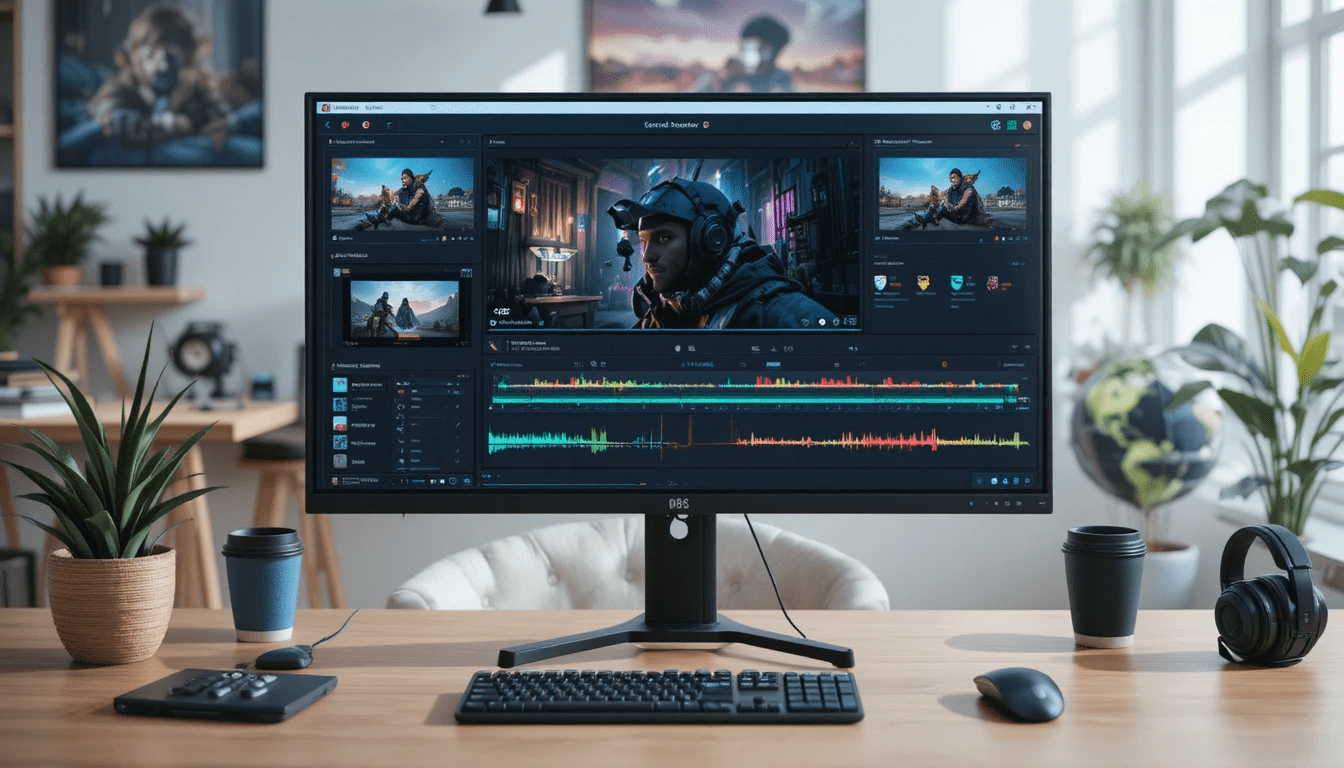
I still remember the first time I tried to record my screen. I had this brilliant idea for a tutorial, and I thought I could just press “record” on some random software and everything would magically work. Spoiler: it didn’t. My cursor disappeared, the audio was out of sync, and I spent an hour editing a five-minute video. That’s when I stumbled upon Open Broadcaster Software screen recording, and it changed everything.
If you’ve ever wanted to create tutorials, capture gameplay, or just record your computer screen with professional quality, OBS is the tool you didn’t know you needed. And yes, it’s free, powerful, and surprisingly flexible once you get the hang of it.
Why OBS is Different from Other Screen Recorders
There are plenty of screen recording tools out there, but OBS (Open Broadcaster Software) stands out for several reasons:
- Completely free and open-source: No trial limitations or hidden costs.
- Customizable scenes and sources: You can mix your screen, webcam, audio, and even images into one setup.
- Supports high-quality recording and live streaming: Whether it’s 1080p gaming or a detailed tutorial, OBS can handle it.
- Cross-platform: Works on Windows, Mac, and Linux.
I’ve tried a few paid tools in the past, but I always found myself going back to OBS because it gives full control. You can start simple, then gradually explore all the features as you get comfortable.
Getting Started with OBS Screen Recording
Starting with OBS can feel intimidating. When you open it for the first time, it’s like walking into a control room full of buttons, sliders, and settings. Don’t panic. The setup is simpler than it looks.
Step 1: Download and Install
Head over to the OBS official website, download the version for your system, and follow the installation instructions. Once installed, open OBS, and you’ll be greeted with a default scene.
Step 2: Understanding Scenes and Sources
OBS works on a scene and source system. A scene is like a setup or layout for your recording, and sources are the inputs:
- Display Capture: Captures your entire screen.
- Window Capture: Records a single application window.
- Video Capture Device: Adds your webcam.
- Audio Input/Output Capture: For microphones and system sounds.
For example, when I record a tutorial, I usually have a scene with my screen capture as the main source and my webcam in the corner for personal commentary.
Step 3: Configure Your Recording Settings
Settings can be overwhelming, but a few key adjustments make a huge difference:
- Recording Format: MP4 is reliable.
- Resolution: Match your screen for clarity.
- Frame Rate: 30 fps is enough for tutorials, 60 fps for smooth gaming.
- Bitrate: Higher bitrate = higher quality, but bigger files.
Pro tip: Always do a short test recording before committing to a full video. It saves a lot of frustration.
Using OBS for Tutorials
Recording tutorials is slightly different from recording gameplay. You want clarity, easy-to-follow visuals, and good audio.
- Highlight Important Sections: Zoom in on critical parts of your screen or add a cursor effect.
- Microphone Quality Matters: Even the best screen recording fails if the audio is unclear. OBS lets you choose your mic and adjust levels.
- Use Multiple Scenes: You can switch between full-screen demos, slides, or webcam-only commentary without stopping the recording.
I once made a tutorial for Photoshop beginners. By setting up different scenes for tools, workspace, and live editing, the final video felt polished and professional. And that’s the magic of Open Broadcaster Software screen recording—it makes everything manageable.
Recording Gameplay with OBS
Gaming is where OBS really shines. If you want to stream or just record epic gaming moments, here’s what I learned from experience:
- Game Capture Source: This performs better than Display Capture for most games. It hooks directly into the game, giving smoother performance.
- Optimize Settings for Performance: High FPS and resolution are great, but if your computer lags, lower the bitrate or resolution.
- Add Overlays and Alerts: Want your webcam in the corner or real-time notifications during live streams? OBS handles it seamlessly.
For instance, when I recorded a Free Fire gameplay tutorial, using Game Capture plus my webcam and a small overlay for chat made the video feel like a professional stream without expensive software.
Common Mistakes to Avoid
Even experienced users make mistakes with OBS, and I’ve definitely fallen into a few of these traps:
- Recording in the wrong resolution: Your video might look blurry if your canvas doesn’t match your screen.
- Forgetting audio settings: It’s easy to record a great video with no sound. Always check your mic and system audio levels.
- Too many sources at once: Each source consumes CPU. Keep it simple if your computer isn’t high-end.
- Not testing before full recordings: Always do a short test clip to ensure everything works as expected.
Advanced Tips for Pro-Level Recording
- Hotkeys: Assign shortcuts to start/stop recording or switch scenes. Saves time and makes recording smoother.
- Filters and Effects: OBS allows noise suppression, gain control, and video filters. Makes a huge difference for tutorials and gaming commentary.
- Recording Separate Tracks: You can record mic and system audio separately. This helps if you want to edit the video later.
- Multiple Scenes: Perfect for creating polished videos where you switch between slides, demos, and webcam smoothly.
Real-Life Example
I recently recorded a full tutorial series on Excel for beginners. I set up three scenes:
- Full-screen Excel demo
- Webcam-only commentary
- Slide overview of steps
Switching between scenes mid-recording was seamless. And thanks to OBS, the recordings looked professional even though I was just using my laptop. That’s the real power of Open Broadcaster Software screen recording—you don’t need fancy gear, just smart setup.
FAQs About Open Broadcaster Software Screen Recording
Q: Can OBS record without lagging?
Yes, but it depends on your computer. Use Game Capture for games, optimize bitrate, and don’t overload with too many sources.
Q: Is OBS free?
Absolutely. No watermarks, no limits, fully open-source.
Q: Can I record my webcam along with the screen?
Yes, just add a Video Capture Device source, position it anywhere on your screen, and adjust size.
Q: Does OBS work on Mac and Linux?
Yes, OBS is cross-platform. Windows, Mac, Linux—all supported.
Q: Can I live stream and record at the same time?
Yes. OBS lets you record locally while streaming to platforms like Twitch, YouTube, or Facebook.
Wrapping Up
Open Broadcaster Software screen recording isn’t just for gamers or pros. Anyone who wants to create tutorials, record presentations, or even capture gameplay can benefit. The learning curve might seem steep at first, but start simple—screen capture, mic audio, and one scene. Once you’re comfortable, explore overlays, multiple scenes, filters, and hotkeys.
Personally, OBS completely changed how I create content. From messy first attempts to polished tutorials and gaming videos, it gave me the flexibility to grow. And the best part? You can start today, without spending a dime.
OBS is more than just software—it’s a tool that makes you feel in control of your recordings, whether it’s a 10-minute tutorial or an epic 3-hour gameplay session.
